
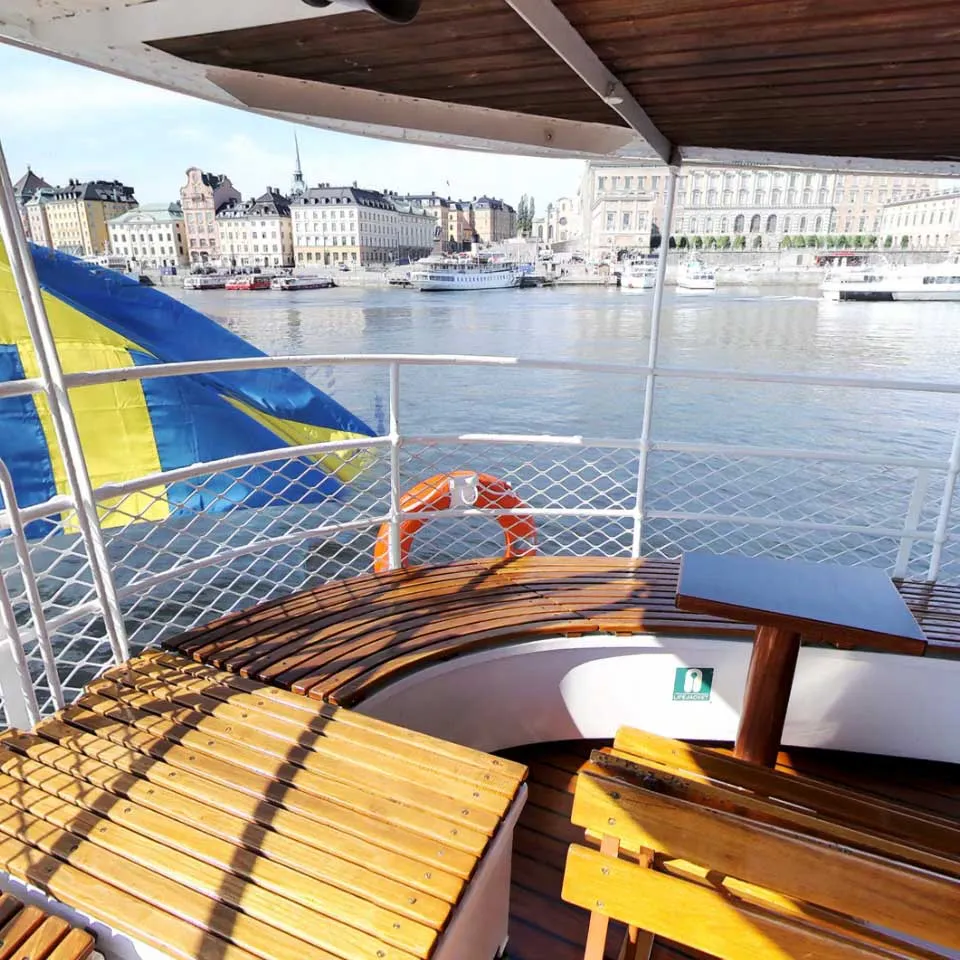
The Panorama block presents a 360 degree environment, such as a room or an outdoor scene – useful if you want to bring your audience to a place they can’t visit in person. It’s based on a 360 degree spherical image or video, sometimes referred to as an equirectangular format. This provides a panoramic view from the vantage point of the camera used to take it. Look around by swiping, pinch to zoom in/out. Buttons and other child blocks can be added to the inside of this sphere. Buttons can act as click-able hot-spots, navigating to other locations.
NOTE: This is a premium block type, requiring additional license options in order to be displayed.
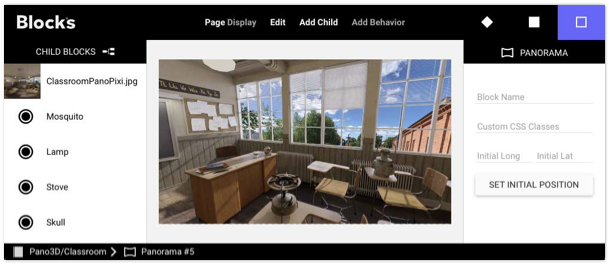
A Panorama block with its equirectangular background image and a few buttons.
To specify the initial orientation of the panorama when first shown on a spot, spin it to the desired view, then press “Set Initial Position”. Select “Reset after Timeout” to reset the panorama to its initial orientation after a configurable period of inactivity.
When selected, you can also opt to have the panorama auto-rotate while inactive by specifying a rotation speed.
You must add a single, equirectangular background image/video as the first block in the list of child blocks. This must have a 2-to-1 aspect ratio. Find some example videos here. An equirectangular image/video can be made in the following ways:
• Use specialized a camera with a 360 degree lens.
• Use the Google Street View Android/iOS app to make the image, then transfer it to your computer.
• Render one from a 3D program (if your entire scene is a 3D model).
• Make/edit one in Adobe Photoshop by stitching several still images together.
No reviews yet.