


Use a Live Video block to display streaming video, originating from a camera, streaming box, web service or other source. Similar
to the Web block described above, you need a URL to the video stream in most cases.
NOTE: This is a premium block type, requiring additional license options in order to be displayed.
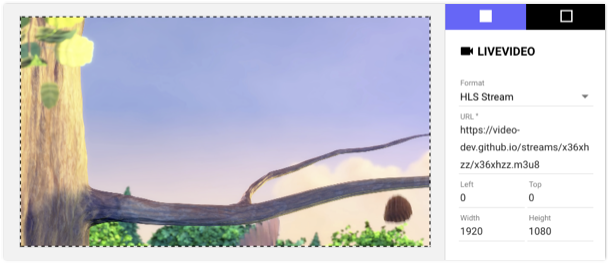
Live Video Formats and Settings
Select the expected type of video stream under Format:
• RTSP stream. Includes audio. Low latency (generally 0.5 second or less). Supported by most network cameras and streaming boxes. Compatible with most browsers/players.
• RTMP stream. Includes audio. Low latency (generally 0.5 second or less). Supported by most streaming boxes. Compatible
with most browsers/players. Note that some streaming solutions require the server (here Blocks) to listen for the stream in
67
order to connect, which means that the stream must be displayed in order for the connection to work. Other streaming solutions (such as the popular ATEM Mini Pro) are more flexible, retrying the connection automatically until it succeeds.
• HLS stream. Includes audio. Latency is significant (3 to 10 seconds, or more). Supported by some streaming boxes and most
web services. Compatible with most browsers/players.
• MJPEG stream. Low latency. Supported by many video cameras and streaming boxes. Audio not included. Compatible with
most browsers/players.
• JPEG polling. Reasonably low delay (less than 1 second). Generally not full frame-rate. Audio not included. Supported by
some video cameras. Compatible with all browsers/players.
• Local Video In. Video is provided through a local capture adapter or webcam.Very low latency (a few frames). Useful, for example, to feed a live PowerPoint presentation into Blocks, by connecting the laptop running PowerPoint to a HDMI-to-USB
adapter plugged into the USB port of a PIXILAB Player. The adapter must support the “USB video device class” standard,
sometimes referred to as “UVC”, “driverless” or “class compliant”. If there’s more than one video input source, select which
one to use by entering its number in the Device Index field, starting from number 1. Device numbers may shift if such devices are added, removed or connected to other ports on the player.
Local Video In may require specific settings to automatically grant access to the video device. PIXILAB Player is preconfigured with all relevant settings. If using a regular web browser, check under the browser’s advanced settings.
• Internal Video Block. Video is taken from another visible Video block, essentially duplicating it. Specify the block path to
that Video block as the source. This is useful for players with multiple displays attached, allowing the same video to efficiently
appear on those displays, possibly with different transformations/behaviors.
لا توجد تقييمات بعد.